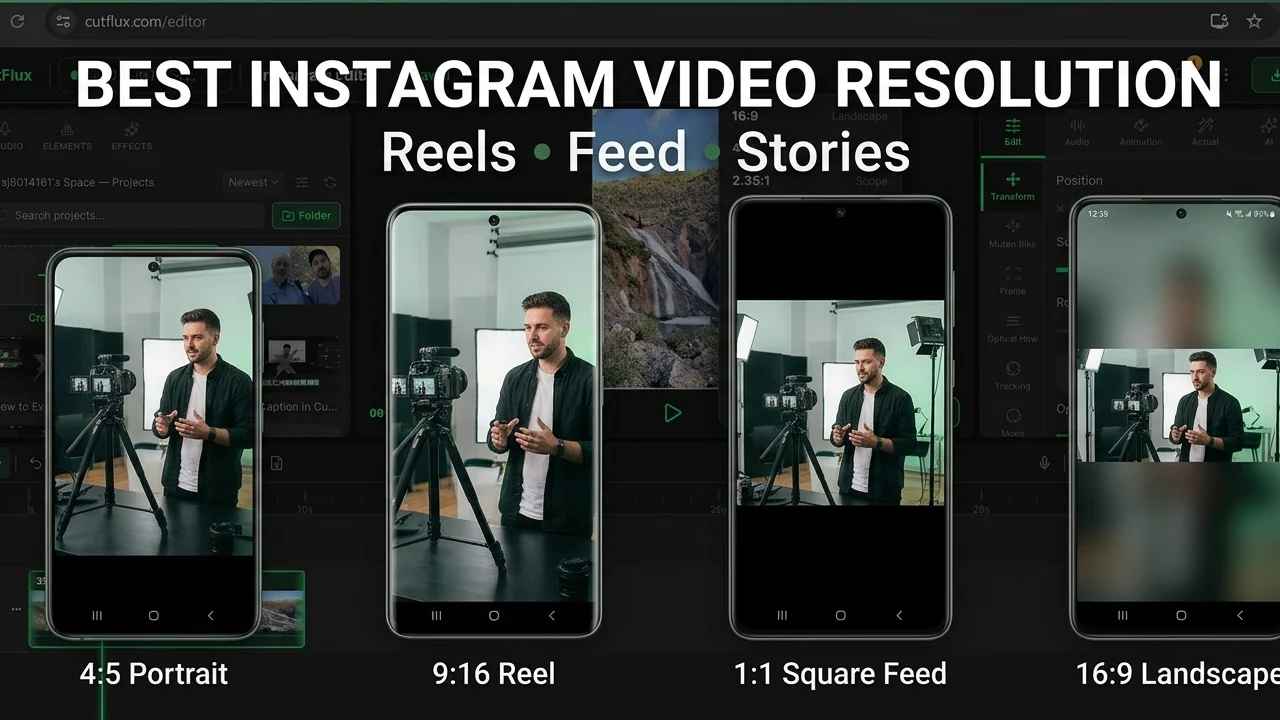
Instagram does not show people the file you upload. It decodes it, re-encodes it at roughly 1080 pixels wide, and streams that copy. Everything you do before the upload is either helping that second encode or fighting it.
That single fact answers most resolution questions. You are not trying to hand Instagram the largest file. You are trying to hand it a file that still looks right after it has been through the machine.
The short answer
| Placement | Shape | Upload at | Why |
|---|---|---|---|
| Reels | 9:16 | 1080 × 1920 | Full-screen vertical. The only shape that fills the player. |
| Stories | 9:16 | 1080 × 1920 | Same frame as Reels, different chrome around it. |
| Feed, portrait | 4:5 | 1080 × 1350 | The tallest frame the feed allows. Most screen area. |
| Feed, square | 1:1 | 1080 × 1080 | Safe and familiar, but uses less of the screen. |
| Feed, landscape | 16:9 | 1080 × 608 | Accepted, then letterboxed between 4:5 and 1.91:1. |
The number that matters in every row is 1080 pixels on the short edge. That is the width Instagram delivers. A 4K upload is not rewarded with a 4K playback; the extra pixels are discarded before anyone sees them.
"Upload in 4K" is bad advice
You will find plenty of guides telling you to export at the highest resolution your editor allows. For Instagram, that is backwards.
The delivery copy is about 1080 wide. If you upload 3840 × 2160, Instagram downscales it, re-encodes it, and streams roughly the same file it would have made from a clean 1080 export. The difference is that you spent minutes uploading four times the data for detail that gets thrown away.
Worse, the upscale path is a real trap. If your source is 720p and you export at 4K, you have not created detail. You have invented pixels, and Instagram's encoder will preserve the softness while adding compression artifacts on top.
What actually survives recompression:
- •A source that was sharp at 1080, not one that was enlarged to it.
- •A high enough bitrate that the encoder has something to preserve.
- •The correct aspect ratio, so Instagram does not crop or zoom to make it fit.
- •As few encode passes as possible between the camera and the upload.
That last one is why sending a video through a messaging app before posting is so damaging. WhatsApp and Telegram recompress media for speed. By the time the file reaches Instagram, it has been encoded three times and there is nothing left to save.
Reels and Stories: 1080 × 1920, minus the interface
Reels and Stories both use a 9:16 frame at 1080 × 1920. The difference is what sits on top of it.
On Reels, the interface covers a meaningful band at the top and a taller one at the bottom. The caption, username, audio ticker, and action buttons all live there. On Stories, the progress bar and reply box do the same job. If you place a headline at the very top of the frame, it will be read underneath the username. If you place subtitles at the very bottom, the caption will sit on them.
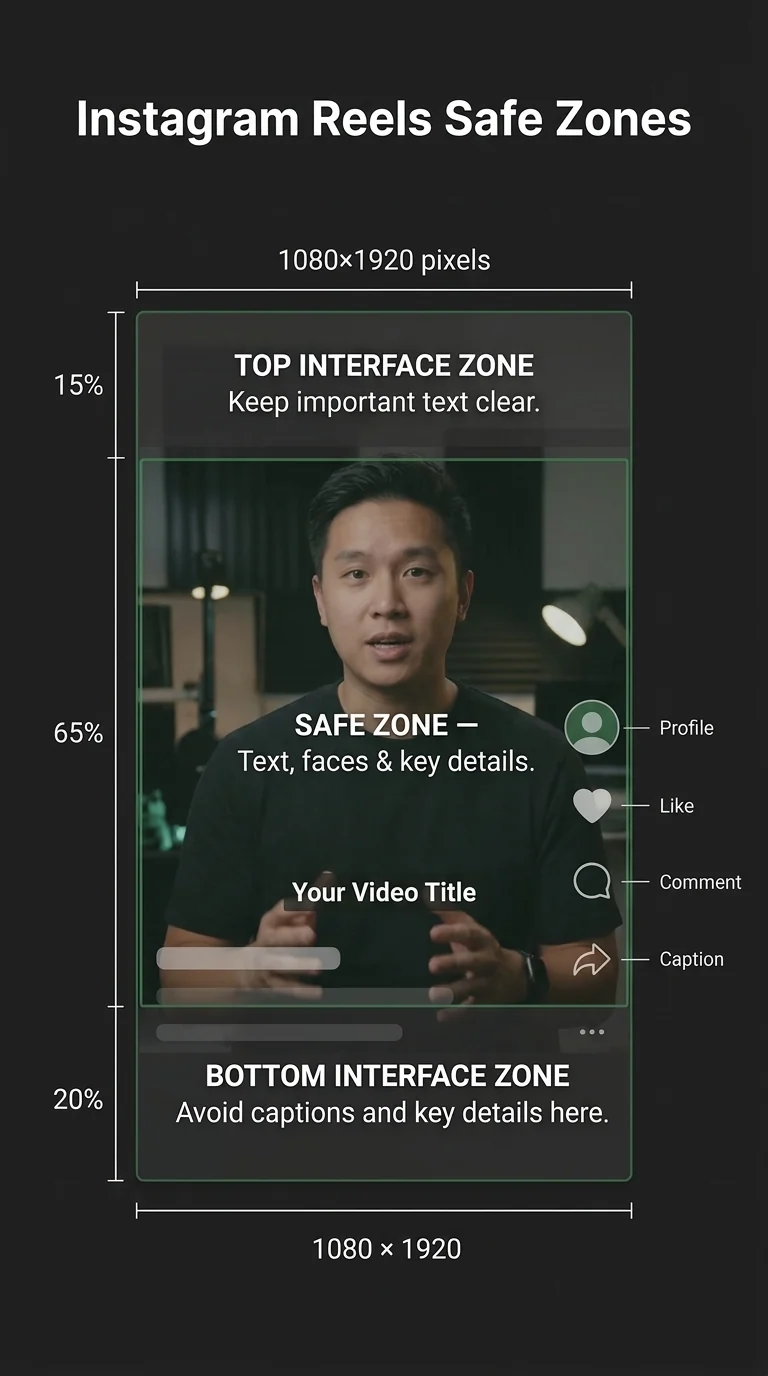
A practical rule: keep the important content inside the middle 1080 × 1400. Leave roughly the top 15% and bottom 20% clear. Backgrounds and b-roll can run edge to edge; words, faces, and product shots should not.
Two more Reels-specific details:
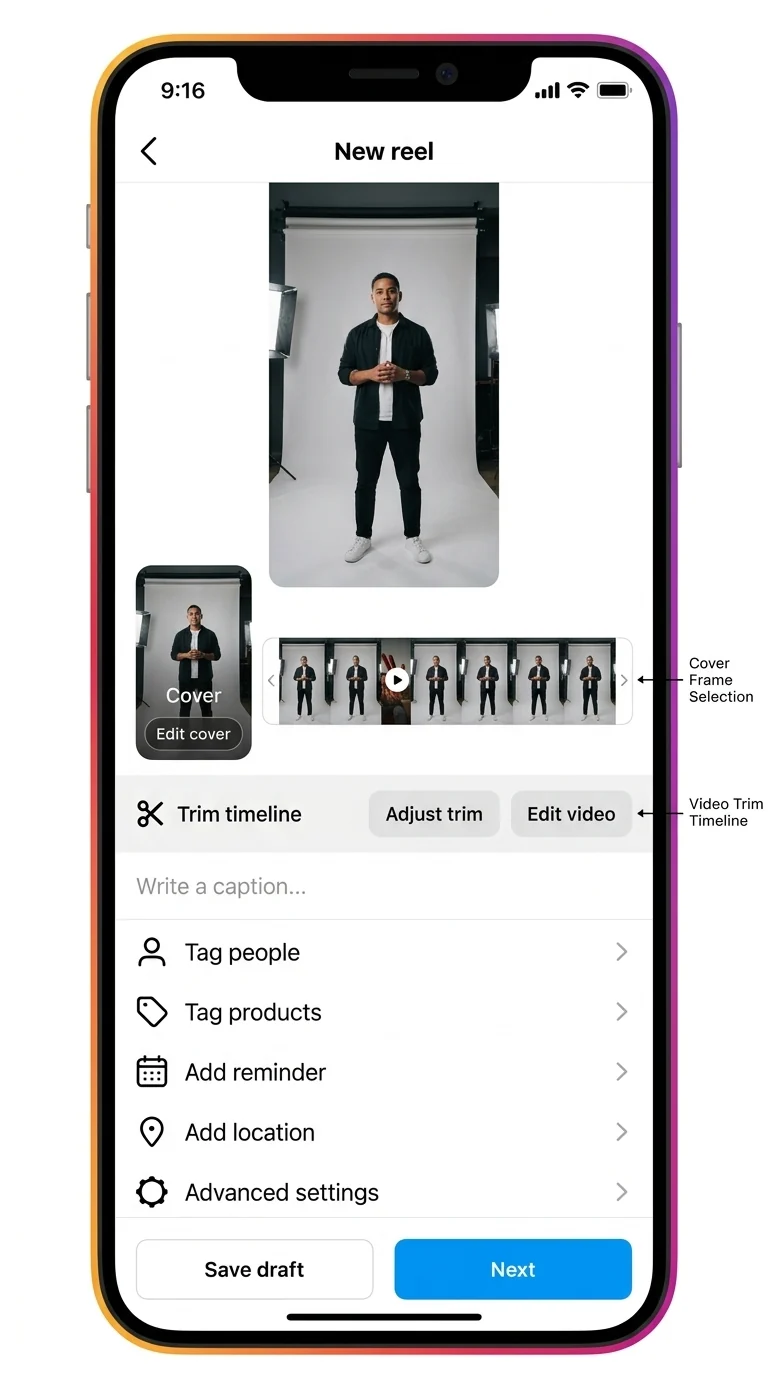
- •The cover is a separate 9:16 image. Instagram defaults to a frame from the video, which is rarely the frame you would have chosen. Pick the cover deliberately.
- •Trimming inside Instagram costs you a generation. If a clip needs to be cut, cut it in the editor and upload the finished file. Do not upload long and trim in the app.
Feed video: 4:5 is the tallest slot
The feed is less generous than Reels. A feed video can be anywhere from 1.91:1 (wide) to 4:5 (tall). Anything more square than 4:5 gets cropped or letterboxed; anything wider than 1.91:1 gets the same treatment.
For most talking-head, product, and tutorial videos, 4:5 at 1080 × 1350 is the right choice. It occupies more vertical space than a square, which means more attention per scroll, without the full-screen commitment of a Reel.
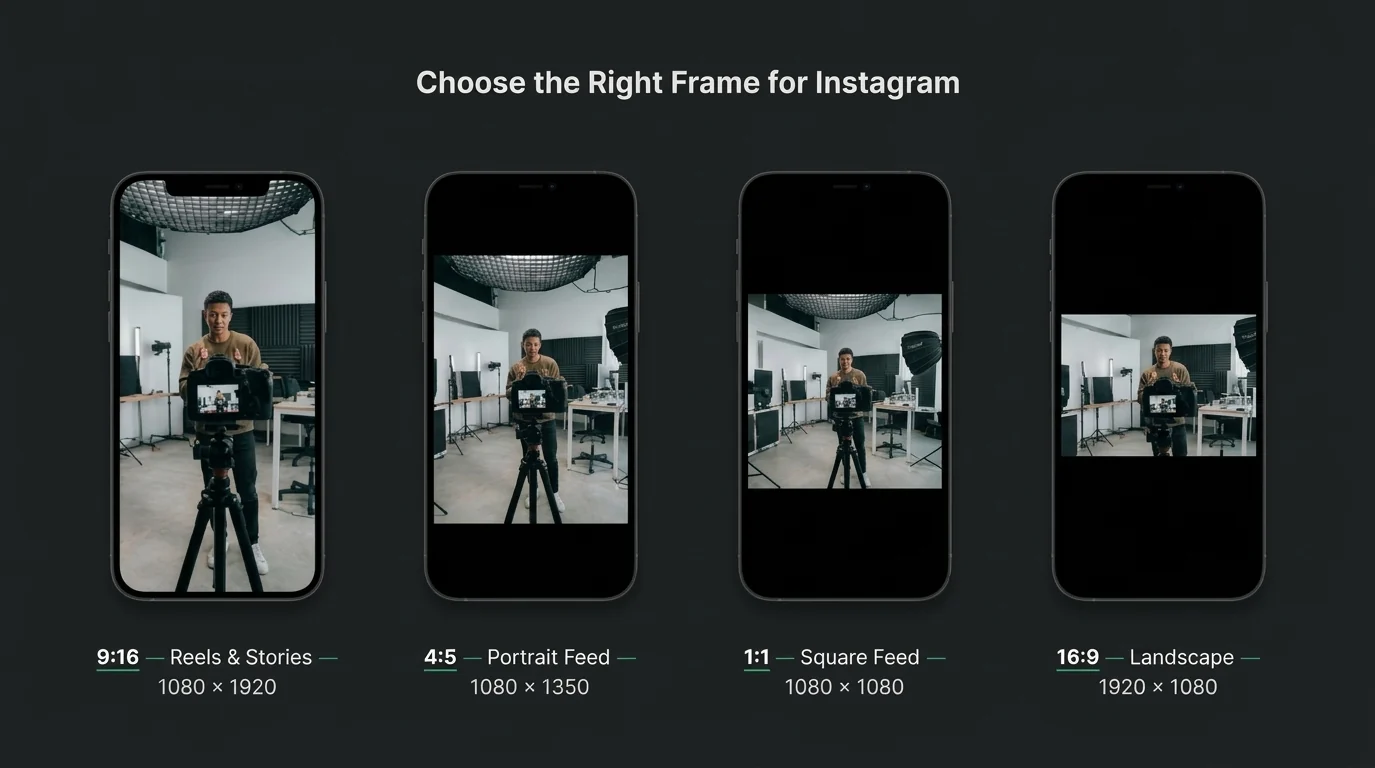
A 16:9 video still works in the feed, but it is displayed inside a taller window with bars above and below. That is fine for screen recordings and cinematic footage. It is a poor choice for anything where the subject needs to feel close.
Do not bake the bars in yourself. Exporting a 16:9 edit onto a 9:16 canvas with black padding tells Instagram the video is 9:16 and gives it a smaller picture inside the frame. Change the project's shape and reframe the shot instead.
The export settings that survive recompression
Resolution is only one line of the export. These are the settings that consistently hold up:
| Setting | Use | Notes |
|---|---|---|
| Container | MP4 | The most compatible file Instagram accepts. |
| Codec | H.264 | The safe default. HEVC works, but H.264 avoids surprises. |
| Resolution | 1080 on the short edge | 1080 × 1920, 1080 × 1350, or 1080 × 1080. |
| Frame rate | 30 fps | 24 for a filmic look, 60 only for fast motion. |
| Bitrate | 10–16 Mbps | Below 8 Mbps the encoder starts smoothing detail. |
| Audio | AAC, 48 kHz, 128–256 kbps | Stereo. Mono is fine for a single speaker. |
| Color | Rec. 709 / SDR | HDR uploads are still inconsistently handled. |
Two habits matter as much as the numbers:
Export once. Every export is a generation. If you export, then run the file through a compressor, then upload, you have given Instagram a file that was already degraded. Start from the original timeline when you need a different size.
Do not sharpen hard. A little sharpening helps text survive compression. Heavy sharpening creates bright halos around edges, and those halos are exactly what a low-bitrate encoder turns into visible noise.
How to upload so Instagram does not undo the work
The upload flow is short, but there are three places where quality is lost by accident.
- •Decide the slot before you edit. A Reel and a feed post are different frames. Editing in 16:9 and hoping the crop works is how subjects lose their heads.
- •Upload the file directly from your camera roll or computer. Do not route it through a chat app, a cloud preview, or a screen recording.
- •Check the cover and the trim before you post. The cover is the thumbnail people see in the grid; the trim is the part Instagram will actually play.
- •Let the upload finish. Closing the app mid-upload can leave you with a partial file and a retry, and the retry is not always the same encode.
- •Post from a stable connection. Upload speed does not change the resolution, but an interrupted transfer can leave you re-uploading a file you have already compressed once.
And the limit nobody likes: you cannot replace the video file after posting. You can edit the caption, the cover, the tags, and the location. You cannot swap the video. If the resolution is wrong, the fix is to delete the post and upload the corrected file. That is why the export settings deserve five minutes of attention before the post goes live, not after.
If the video is already the wrong shape
Most rescue jobs are landscape footage that needs to become a Reel, or a square edit that needs to fill a 4:5 feed slot.
Do not scale the whole composition down until it fits. That is how you get a tiny picture surrounded by background. Change the frame, then reposition the shot inside it:
- •Landscape to 9:16: set the project to 9:16 and move the clip so the subject stays centred. If the subject moves, follow them rather than locking to the middle of the original frame.
- •16:9 to 4:5: you lose the sides, not the height. Check that no text or product detail sits near the edge.
- •Square to 9:16: there is no honest way to fill the extra height with the original image alone. Either reframe and accept the crop, or design the vertical frame with background, title, and b-roll.
This is the same operation as cropping, except the question is not "what do I remove?" It is "what should the viewer see first in the new shape?"
Where CutFlux fits
CutFlux is built around the project frame, not around the file you happened to import. That makes the Instagram workflow a setting rather than a conversion.
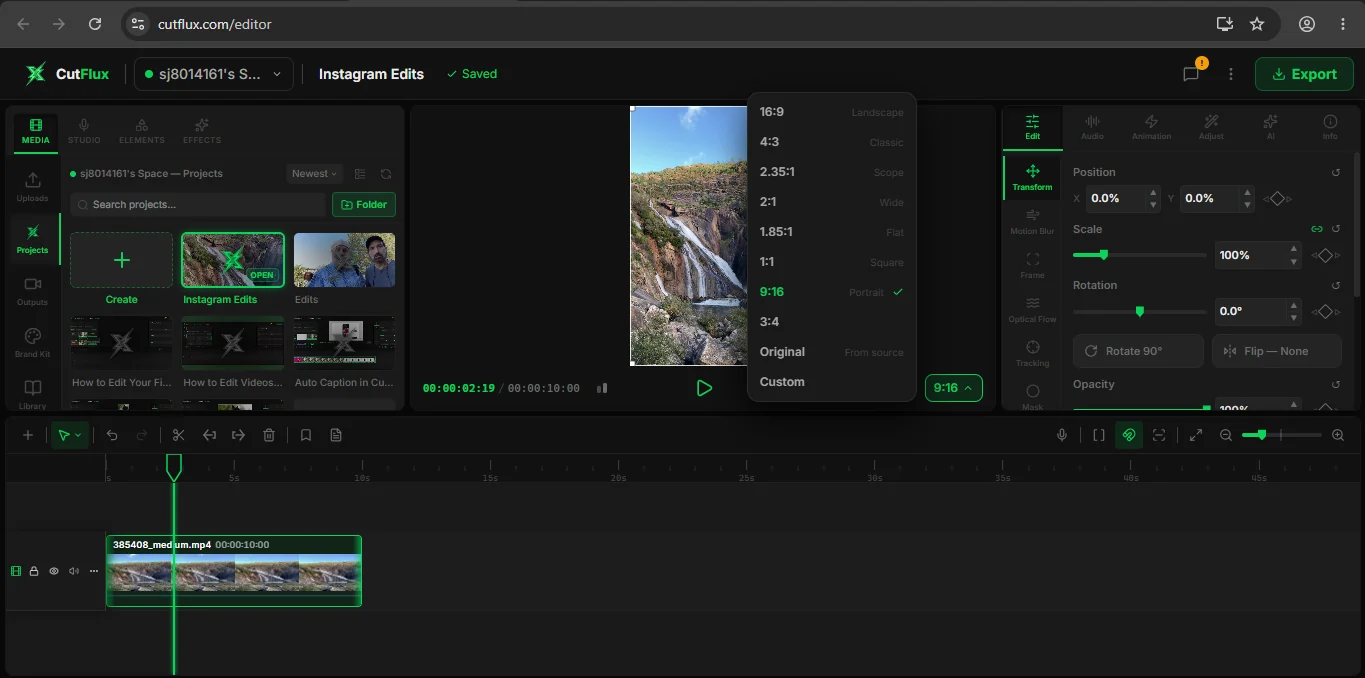
- •Set the frame first. Use the aspect-ratio control in the preview: 9:16 for Reels and Stories, 1:1 for a square feed post, or Custom with a 4:5 ratio for a portrait feed video.
- •Let the resolution follow. Changing the ratio keeps the short edge at 1080. A 1920 × 1080 project switched to 9:16 becomes 1080 × 1920, not a stretched or padded version of the old frame.
- •Reframe the shot, not the whole edit. Move and scale the clip inside the new frame so the subject sits where the vertical composition needs them. If you need both a Reel and a feed cut, build the second one from the same footage rather than re-exporting the first at a different size.
- •Export for Instagram. Open Export, keep Video selected, choose 1080p, H.264, and Auto (recommended) for bitrate, then set the frame rate to 30. That produces an MP4 with the shape you set in step one.
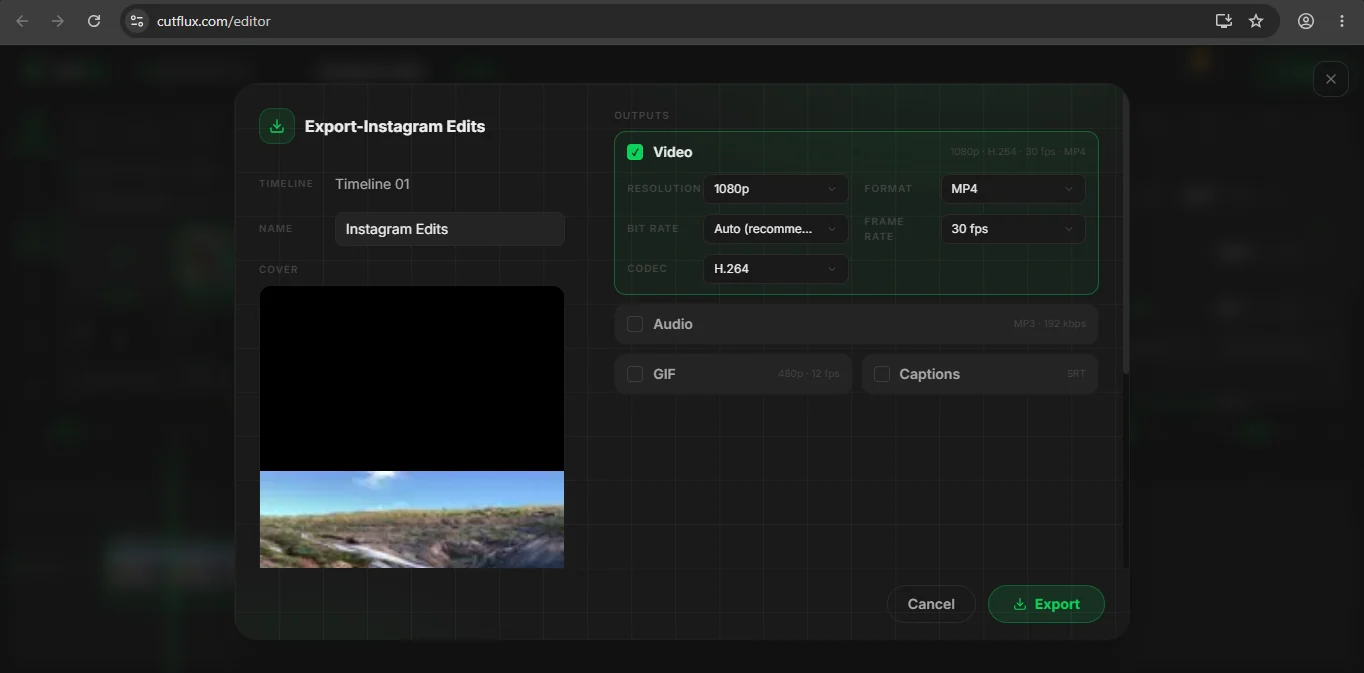
If the source file is unusually large and upload speed is the problem, run it through the video compressor as a last step — not as a quality step. Compressing before Instagram simply adds a generation. Export at the target size once, and upload that.
For footage that needs the edges removed rather than a new composition, the crop video tool does the same job without opening a full project.
FAQ
Is 1080 × 1920 the best resolution for Instagram Reels? Yes. Reels play in a 9:16 frame, and 1080 × 1920 is the largest version Instagram delivers. Exporting larger does not improve playback.
Does Instagram support 4K video? You can upload a 4K file, but Instagram's delivery copy is roughly 1080 wide. The extra resolution is discarded, so a clean 1080 export is the better trade.
Why are my Reels blurry after uploading? Usually one of four things: the source was upscaled from a smaller file, the bitrate was too low, the video was recompressed by another app before it reached Instagram, or the aspect ratio forced a crop that enlarged the remaining pixels.
What is the best format to upload to Instagram? MP4 with H.264 video and AAC audio. It is the most compatible combination and the least likely to trigger an unexpected transcode.
Should I export at 30 or 60 fps? 30 fps for almost everything. Use 60 only when the motion itself is the point — sport, gameplay, fast camera moves. Use 24 if you want a filmic cadence and your footage was shot that way.
Can I fix the resolution of a video after posting? Not by editing the post. Instagram lets you change the cover, caption, and tags, but not the video file. Delete the post and upload the corrected export.
The one-line rule
Edit for the slot, export at 1080 on the short edge, and never let a second app recompress the file on its way to Instagram.