You posted the Reel, watched it back, and found the mistake. Maybe the caption has a typo, the cover frame is a blink, or the cut lands half a second too late.
Instagram treats those as two different problems. The post around the video is editable. The video itself is not. Once you understand which one you are dealing with, the fix is obvious — and so is whether there is a fix at all.
The short answer
| Part of the Reel | Editable after posting? | What you can change |
|---|---|---|
| Caption and hashtags | Yes | Rewrite, add, or remove text at any time. |
| Location | Yes | Add, change, or remove the location tag. |
| Tagged accounts | Yes | Add or remove people you tagged. |
| Cover photo | Yes | Pick a different frame or upload an image. |
| Audio from Instagram's library | Sometimes | The replace-audio option appears for some accounts and some Reels. |
| The video file itself | No | Cuts, trims, on-screen text, effects, and baked-in audio are fixed. |
The line is not arbitrary. Everything above the file is metadata attached to the post. Everything below it is pixels and samples inside the file. Instagram can rewrite the first. It cannot rewrite the second without re-encoding and republishing, which is exactly what deleting and uploading again does.
How to reach the edit screen
Open the Reel, tap the three-dot menu, and choose Edit. You will see the same fields you filled in when you posted: caption, location, tagged accounts, and cover.
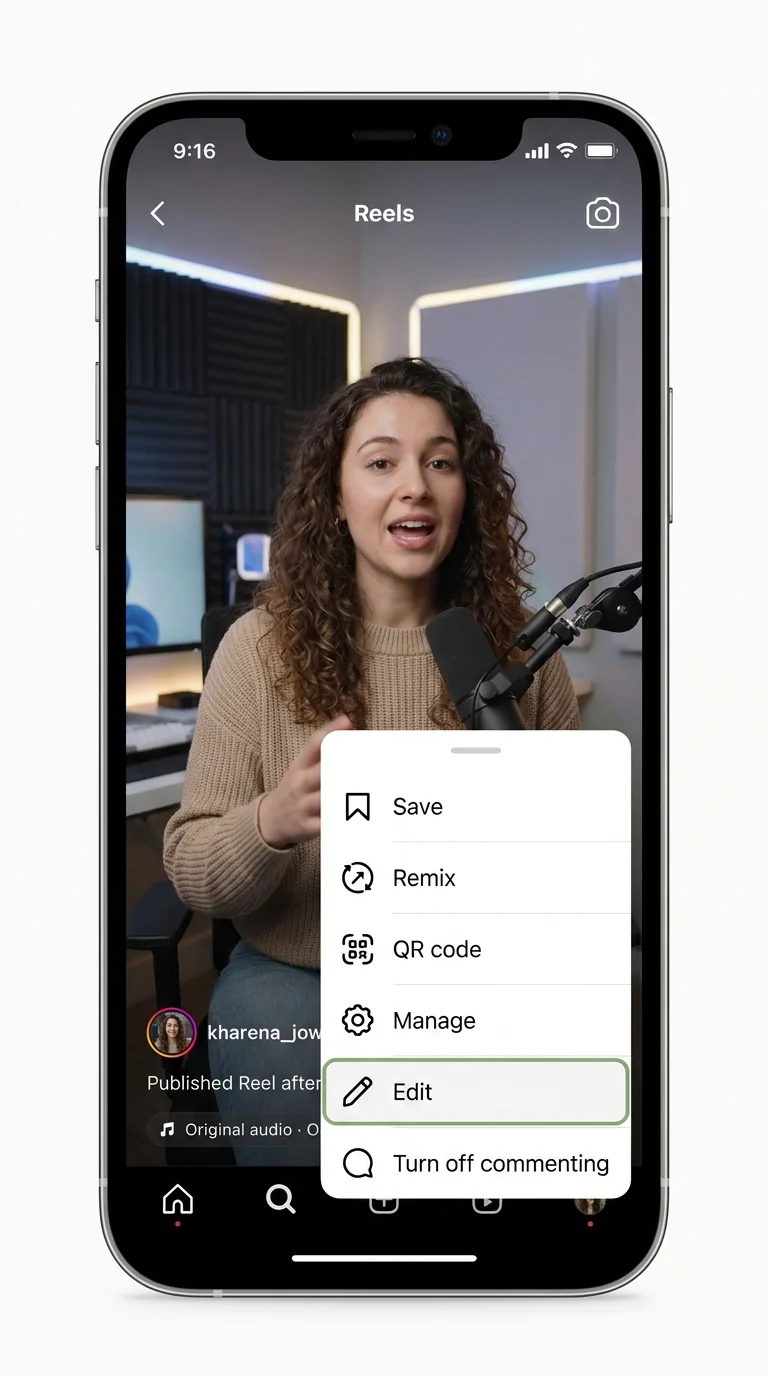
A few things about this screen are worth knowing before you start changing things:
- •Changes are immediate. There is no draft, no review, and no second publish step. The moment you save, the post shows the new caption or cover.
- •The edit is on the post, not on the file. Nothing you do here re-encodes the video.
- •The menu only appears on your own Reels. If you cannot find Edit, make sure you are viewing your own post and that the app is up to date.
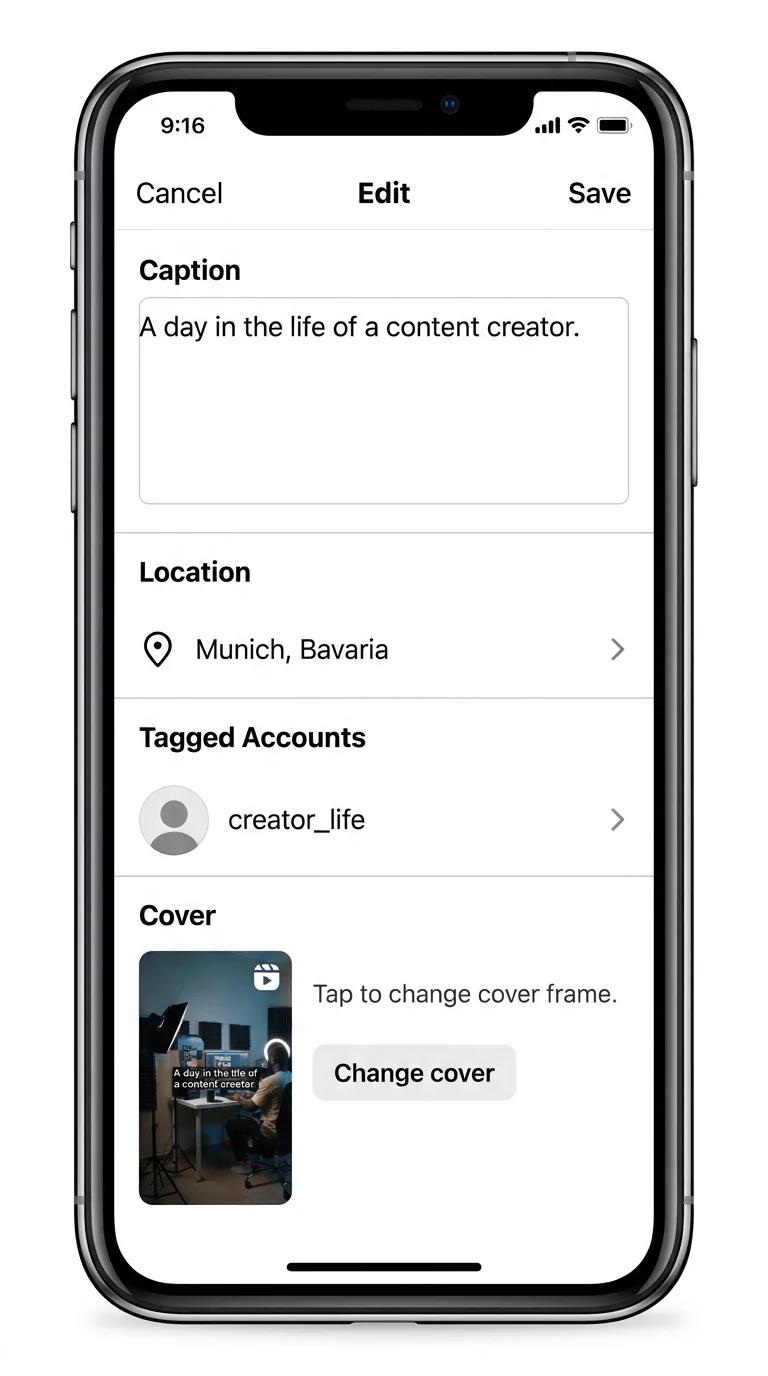
What you can actually edit
Caption and hashtags
The caption is the most forgiving part of a Reel. You can rewrite it, fix a typo, add a call to action, or replace the hashtags completely. The change is live as soon as you save.
Two honest caveats:
- •Editing does not restart the post. The likes, comments, and views already on the Reel stay where they are. A caption edit is a correction, not a second launch.
- •Hashtags are part of the caption, not a magic switch. Changing them can make the post clearer to a human reader. Do not expect a rewrite to rescue a video that already stopped being shown.
Location and tagged accounts
You can add a location, change it, or remove it. You can also add or remove tagged accounts. This is useful when you posted from the wrong place, forgot to tag a collaborator, or tagged the wrong account by mistake.
If you tag someone, they can remove the tag from their own profile. That is their setting, not something you can override by editing.
Cover photo
The cover is the still image people see in your profile grid. It is also the frame Instagram shows before the Reel starts in some surfaces. You can change it without touching the video:
- •Open Edit on the Reel.
- •Tap Cover.
- •Scrub through the video and pick a frame, or upload an image from your camera roll.
- •Save.
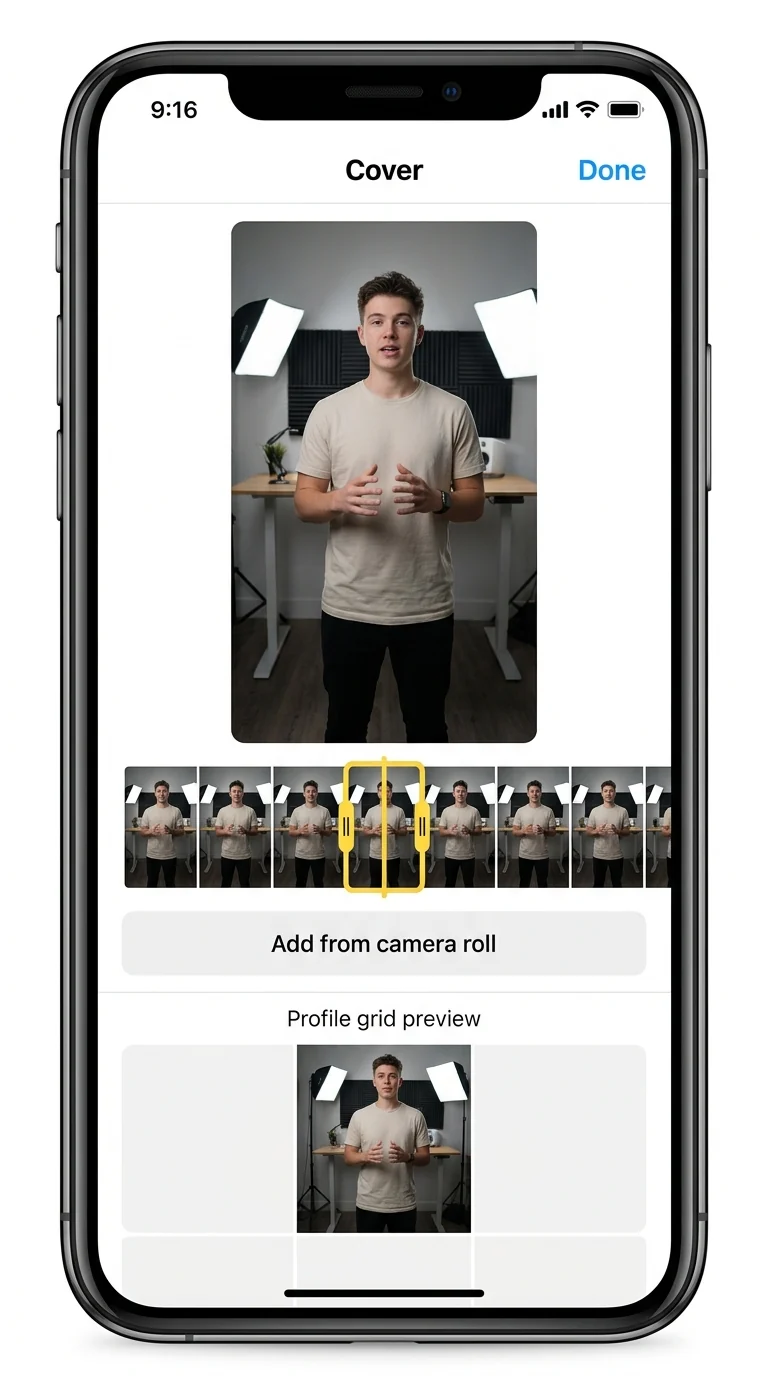
A good cover is not just a pretty frame. In the profile grid it is cropped to a square, so check that the subject's face and any text survive the crop. The frame that looks right in the 9:16 player can lose its edges in the grid.
Audio, but only in one narrow case
This is the part most guides get wrong. There is an audio edit, but it is not a general "change the music" button.
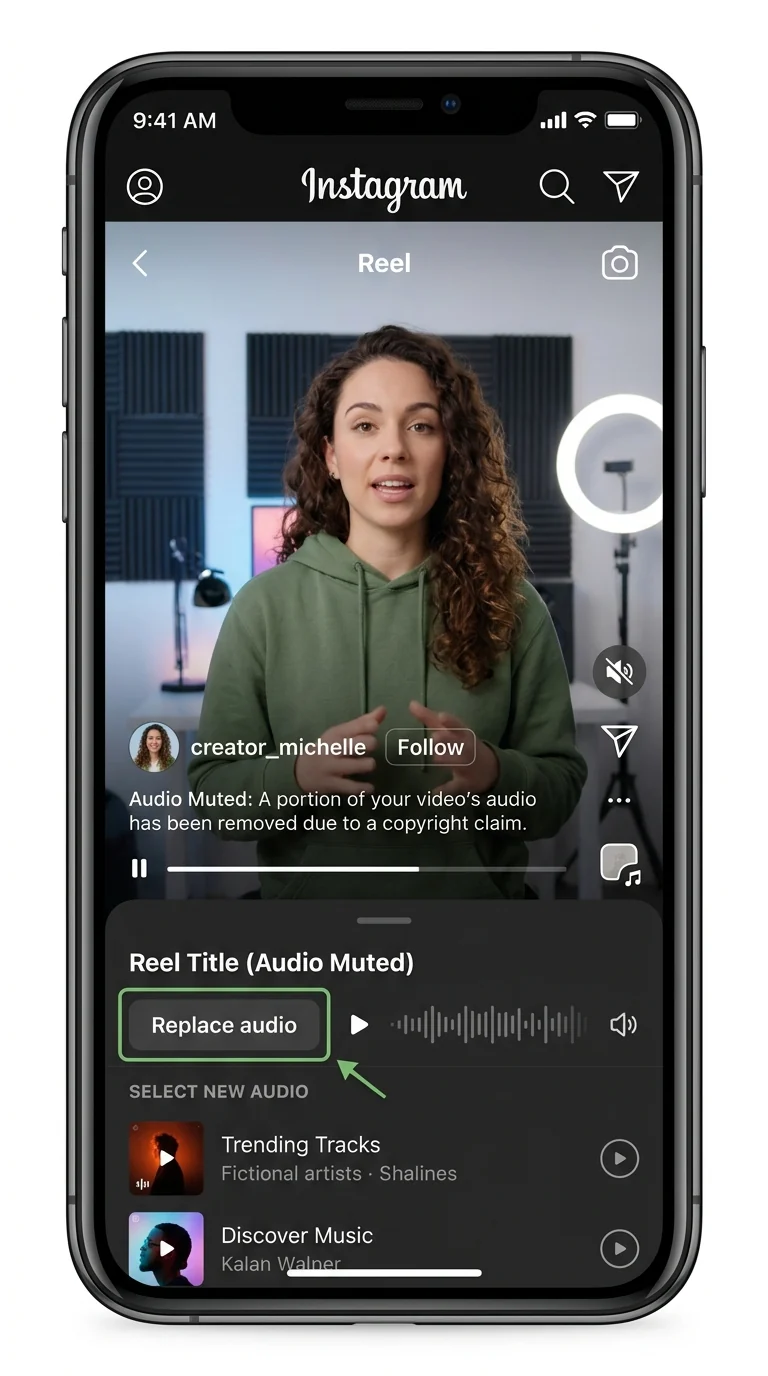
- •If Instagram muted the Reel for a copyright claim, you can usually open Edit and choose Replace audio to select a new track from Instagram's library. This is the reliable case.
- •If you added a track from Instagram's library and want a different one, some accounts see a swap option. It has rolled out unevenly, so do not count on it being there.
- •If the audio was mixed into the video file before upload, none of this applies. Instagram cannot remove sound that is part of the file. Replacing the audio adds a new track; it does not erase the old one.
That last point is the one to remember. A voiceover recorded in another editor, a song laid under the clip, or a sound effect baked into the export is not an Instagram audio track. It is part of the video. The only way to change it is to change the file and post again.
What you cannot edit
The list is short and absolute:
- •The clips, cuts, and trim. You cannot remove a section, reorder shots, or tighten the ending.
- •On-screen text and effects. If the words are burned into the frame, they stay burned in.
- •Audio recorded into the file. A voiceover or a mixed track cannot be pulled out.
- •Resolution, aspect ratio, frame rate, and bitrate. These are properties of the file, not settings on the post. If the Reel is soft because it was exported at the wrong size, no amount of caption editing will sharpen it.
- •The first frame as a creative choice. You can change the cover, but the video still starts where it starts.
This is why the pre-publish pass matters more on Instagram than on almost any other platform. There is no "save as draft" for a live post and no replace-file button. The upload is the commit.
The only real fix: delete and re-upload
If the mistake is inside the video, the fix is a new upload. That is not a workaround; it is the only path Instagram provides.
Before you delete, do three things:
- •Archive the Reel if you might want the comments later. Archiving hides it from your profile without destroying it, and you can restore it. Deleting does not offer that.
- •Save the original file and the caption. You will need both for the new post, and the caption is easy to lose once the post is gone.
- •Check whether it is a collaboration. If another account is attached, coordinate before deleting — the post is shared, and removing it affects both profiles.
Then upload the corrected file as a new Reel. Understand the cost: likes, comments, shares, and the old URL do not transfer. The new post starts from zero.
If the Reel already has real traction, that trade is usually not worth it for a small mistake. Pin a comment with the correction, fix what you can in the caption, and apply the lesson to the next upload. Delete and re-upload when the video itself is wrong — a bad cut, missing audio, the wrong aspect ratio, or text that says the wrong thing.
How to avoid the re-upload next time
The reason this page exists is that Instagram's edit window closes at upload. The way to live with that is to move the editing earlier, into the file, where every change is still free.
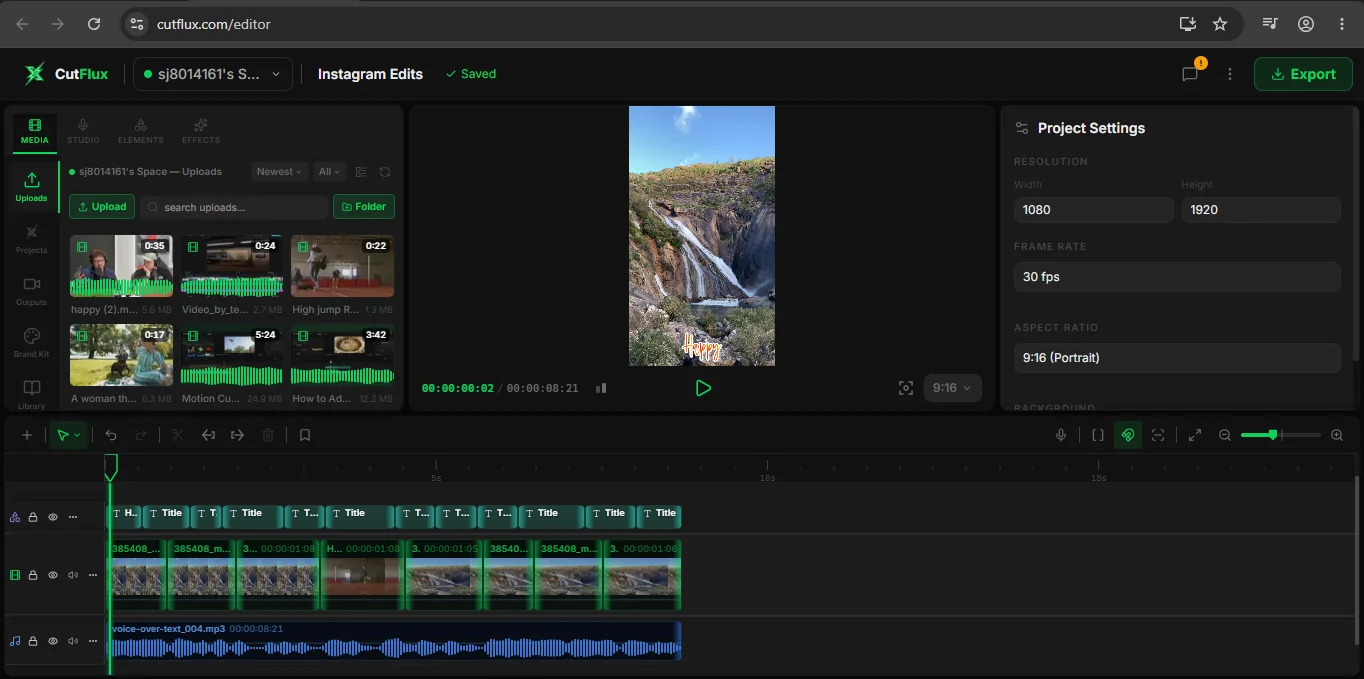
A short pre-publish pass catches almost every "I wish I could edit this" mistake:
- •Cut and trim on the timeline, not in the app. Use the cut video tool or the editor's timeline so the exported file is already the final length.
- •Set the frame before you compose. A Reel is 9:16. Changing the project frame first means the subject, text, and captions are placed for the vertical player rather than cropped into it later. If you are unsure which size to export, the Instagram resolution guide has the exact numbers.
- •Place captions deliberately. Captions added in the editor become part of the export. That gives you control over line breaks, size, and safe zones — and it also means they are permanent, like every other burned-in element. The trade is the same one this whole page is about: control before, no edits after.
- •Check the cover frame in the grid crop. The cover is editable later, so this is the one thing you can defer. Everything else should be settled before you press export.
- •Export once, at 1080p, H.264. Keep the project file. If you do need a corrected version, re-exporting from the project is far faster than rebuilding the edit from the uploaded file.
The crop video and add subtitles tools cover the two fixes people most often try to make after posting: a frame that is the wrong shape and captions that were never there.
FAQ
Can you edit a Reel after posting? Yes for the post: caption, hashtags, location, tagged accounts, and cover. No for the video file: cuts, trim, on-screen text, effects, and baked-in audio cannot be changed.
Can you add music to a Reel after posting? Only through the limited replace-audio flow. If Instagram muted the Reel for a copyright claim, you can usually choose a new track from Instagram's library. If the music was mixed into the video file, you cannot replace it.
Can you change the cover of a Reel after posting? Yes. Open Edit, choose Cover, then scrub to a frame or upload an image. Check how it looks in the square profile grid, not only in the 9:16 player.
Can you trim a Reel after posting? No. Trimming changes the video file, and Instagram does not allow the file to be replaced. Delete and re-upload the corrected version.
Can you edit a Reel caption after posting? Yes, at any time, and the change is immediate. It does not reset the engagement the post has already earned.
Why can't I see the Edit option on my Reel? Make sure you are viewing your own post and that the app is current. The menu is only available on posts you own.
Does deleting and re-uploading keep the likes and comments? No. A new upload is a new post. The old engagement and URL are gone, which is why archiving first is worth doing if you might want the comments.
The one-line rule
Edit the post as much as you like. Edit the video before you upload, because Instagram will not let you edit it after.