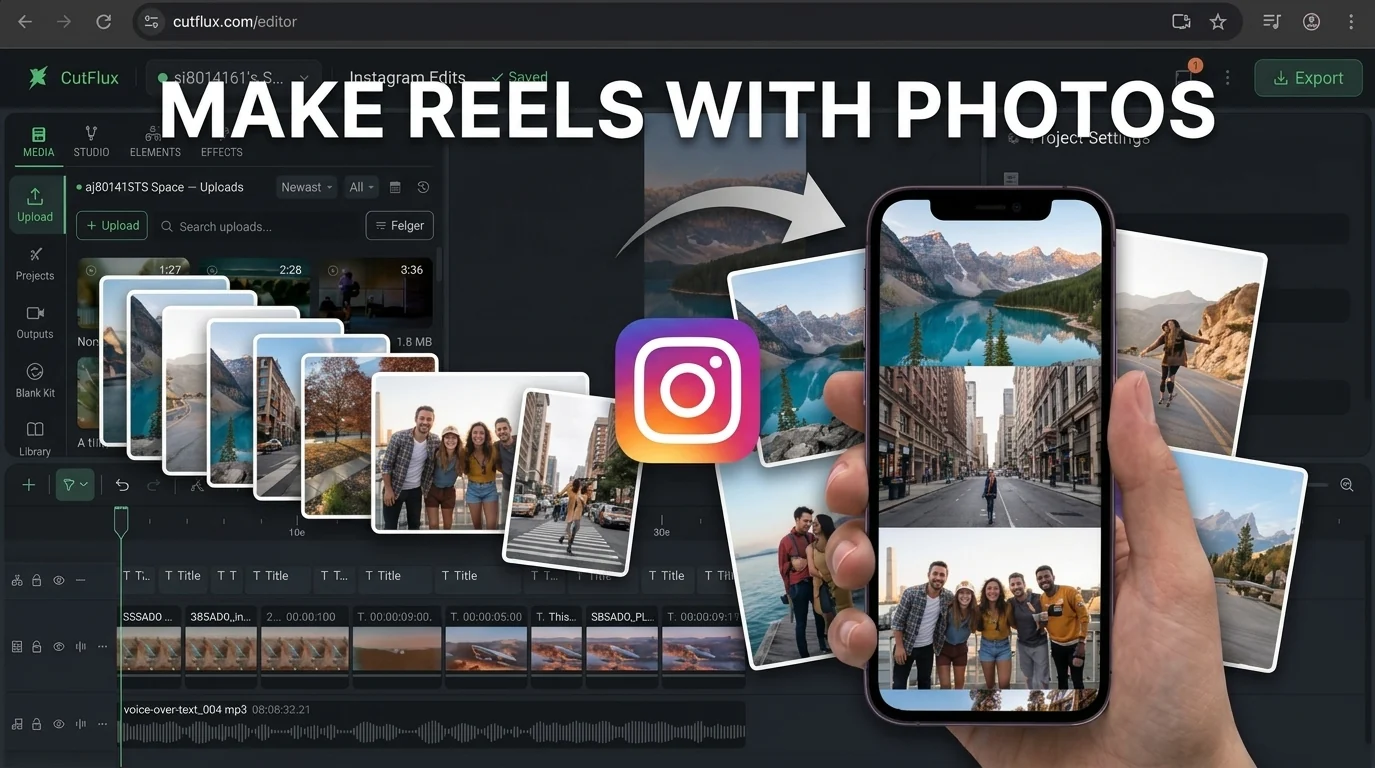
A photo Reel is not a slideshow with music over it. A slideshow asks the viewer to wait. A Reel has to earn the next second, the same way a video does.
The good news is that photos give you something video often does not: control. You can choose every frame, hold on the one that matters, and cut the rest without reshooting anything. The work is in the timing and the motion, not in the camera.
The short answer
| Decision | Start here |
|---|---|
| How many photos | 6–12 for most Reels. Fewer if each frame carries text. |
| Frame size | 1080 × 1920, 9:16. |
| Time per photo | 1–2 seconds. 2–3 seconds when the frame has a sentence to read. |
| Motion | A slow push-in or pan on every photo. Nothing should sit still. |
| Music | One track, cut on the beat. |
| Text | One idea per frame, inside the middle band. |
| Length | 7–20 seconds. Long enough to land the idea, short enough to loop. |
The number that matters most is not the photo count. It is the time per photo. Most photo Reels fail because each image stays on screen about twice as long as it should.
Why photo Reels work at all
Photos are cheap to produce and easy to reorder, which makes them a good fit for the things people actually save and share: before-and-after comparisons, product details, process shots, lists, and short story beats.
They also solve a specific problem. A talking-head video has to be shot. A photo Reel can be built from material you already have — a camera roll, a product shoot, a client's photos, a set of screenshots — and still feel designed rather than assembled.
The catch is the same as with any Reel: the format rewards movement and rhythm. Stills with a song over them read as a slideshow, and a slideshow is what people scroll past.
Two ways to build one
| Inside Instagram | In an editor like CutFlux | |
|---|---|---|
| Speed | Fastest. Select photos, add music, post. | More setup, but reusable. |
| Timing | Basic sequence control. | Per-photo timing down to the frame. |
| Motion | Limited to what the app offers. | Push-ins, pans, and keyframed movement. |
| Text | Per-photo text and stickers. | Reusable captions and safe-zone placement. |
| Music sync | Instagram's library. | Your track, with beat markers to cut against. |
| Reuse | Rebuild each time. | Save the project as a template and swap the photos. |
| Best for | A quick post from your phone. | A series, a branded format, or precise timing. |
Neither is wrong. The native flow is genuinely good for a fast post. The editor wins when you need the same structure every week, or when the timing has to land on a specific beat.
The native Instagram flow
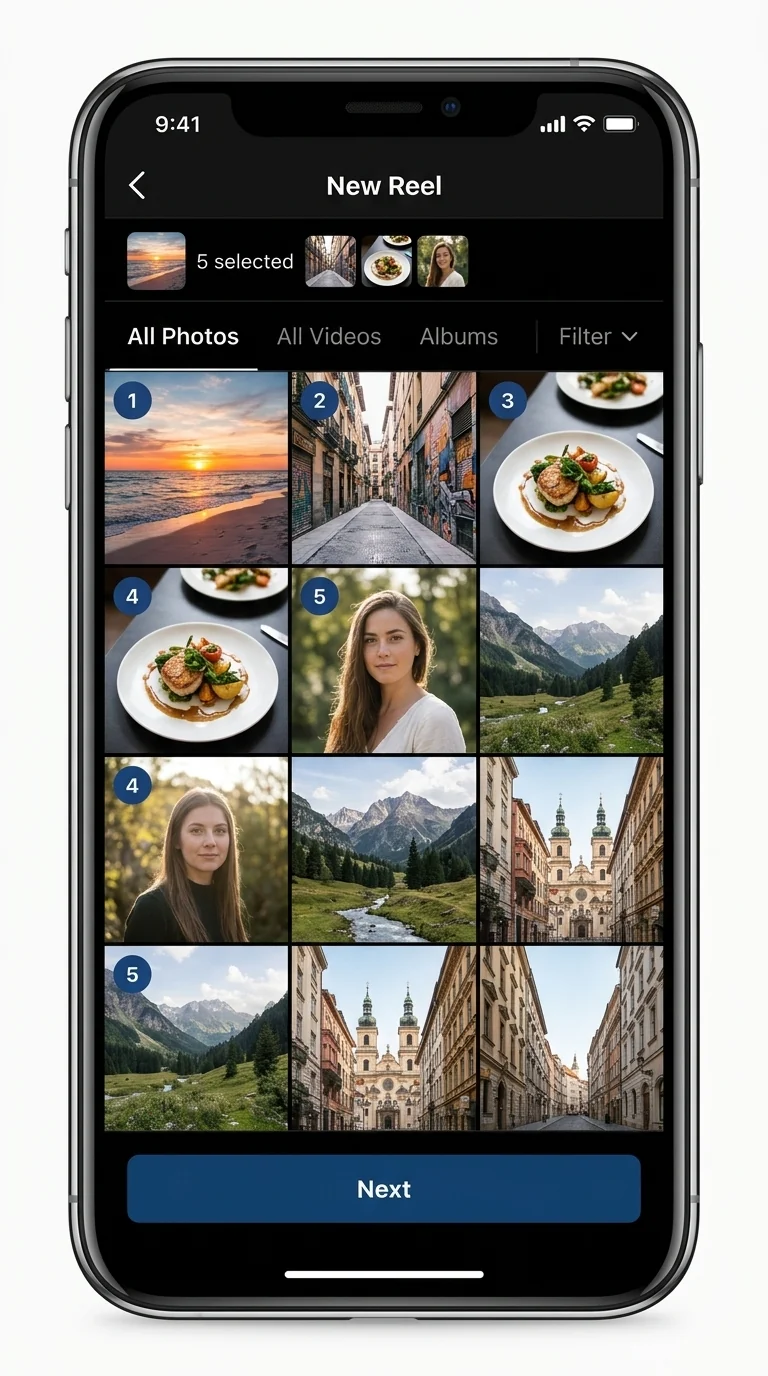
- •Open the Reels camera. Tap the create button, then choose Reel.
- •Open the gallery and select the photos in order. The order you select is the order they appear, so decide the sequence before you start tapping.
- •Review the sequence Instagram builds. Each photo becomes a short segment. Watch it once at full speed before you add anything else.
- •Add music. Choose a track from Instagram's library, then trim it to the section you want. The opening of a track is rarely the best part.
- •Add text to the first frame. This is your hook. Keep it to a few words and place it inside the safe area, not against the top or bottom edge.
- •Set the cover, write the caption, and post. The cover is separate from the first frame, so pick the still you want in the grid.
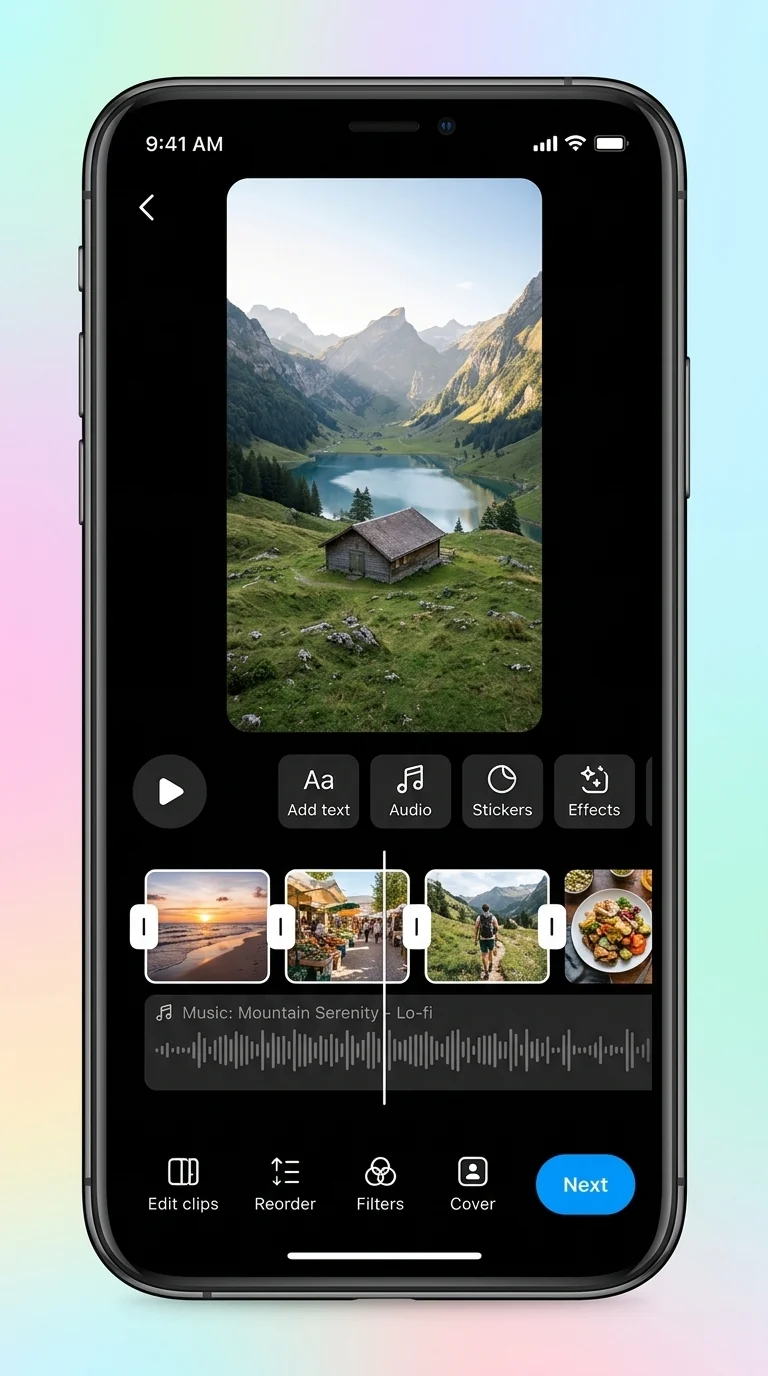
The native flow has one real limitation: it is built for speed, not for repeatability. If you want the same timing, text placement, and motion every week, you will rebuild it every week.
The five rules that keep it from looking like a slideshow
1. Cut on the idea, not on the photo count
Ten photos do not make a better Reel than seven. Each frame should do one job: establish, show, compare, prove, or close. If two photos do the same job, keep the stronger one.
2. Give every frame a little movement
A still photo in a moving feed looks frozen. A slow push-in, a small pan, or a drift from one side to the other is enough. The movement should be slow enough that you notice it only if you look for it.
This is also what makes a photo Reel feel like a video rather than a carousel. The frame is never completely static, so the viewer's eye has somewhere to go.
3. Cut on the beat, then break the pattern once
Music gives you a clock. Cut the photo changes to the beat, and the sequence immediately feels intentional. If every cut lands on every beat, it also feels mechanical, so let one frame hold longer — usually the one carrying the most important sentence or the payoff.
4. Treat text as a spine, not decoration
The strongest photo Reels can be read with the sound off. That does not mean a caption on every frame. It means one line that carries the argument, spread across the frames that need it.
Keep text inside the middle band of the 9:16 frame. The top and bottom are where Instagram puts the username, caption, audio ticker, and buttons. The Instagram resolution guide has the exact safe-zone numbers if you want them.
5. Make the last frame loop into the first
A Reel that ends where it began gets watched twice without the viewer deciding to watch it again. This is easiest when the last photo is visually similar to the first: the same room, the same subject, the same colour. The loop should feel like a return, not a repeat.
How to prepare the photos
The editing cannot rescue a set of photos that were never going to work together. A few minutes of prep fixes most of it:
- •Use photos that can actually fill the frame. 1080 × 1920 is the target; anything at least 1080 wide and 1920 tall can be cropped to 9:16 without inventing pixels. A 4:5 photo (1080 × 1350) is shorter than the frame, so it needs a crop that gives up the sides or a designed background behind it. A 640-pixel-wide photo will look soft before Instagram ever touches it.
- •Crop, do not stretch. Stretching changes faces and product proportions. Crop to the vertical frame and move the subject where they need to be.
- •Match the look. Photos from three different lighting setups will read as three different posts. A consistent exposure and colour treatment is most of what makes a set feel authored.
- •Avoid tiny text in the photo. If a detail is unreadable on a phone at arm's length, it will be unreadable in the Reel.
- •Leave room for the interface. Faces and important details in the middle; backgrounds can run to the edges.
The CutFlux workflow
The reason to move the edit into CutFlux is not that Instagram's flow is bad. It is that a photo Reel is a template, and a template should be reusable.
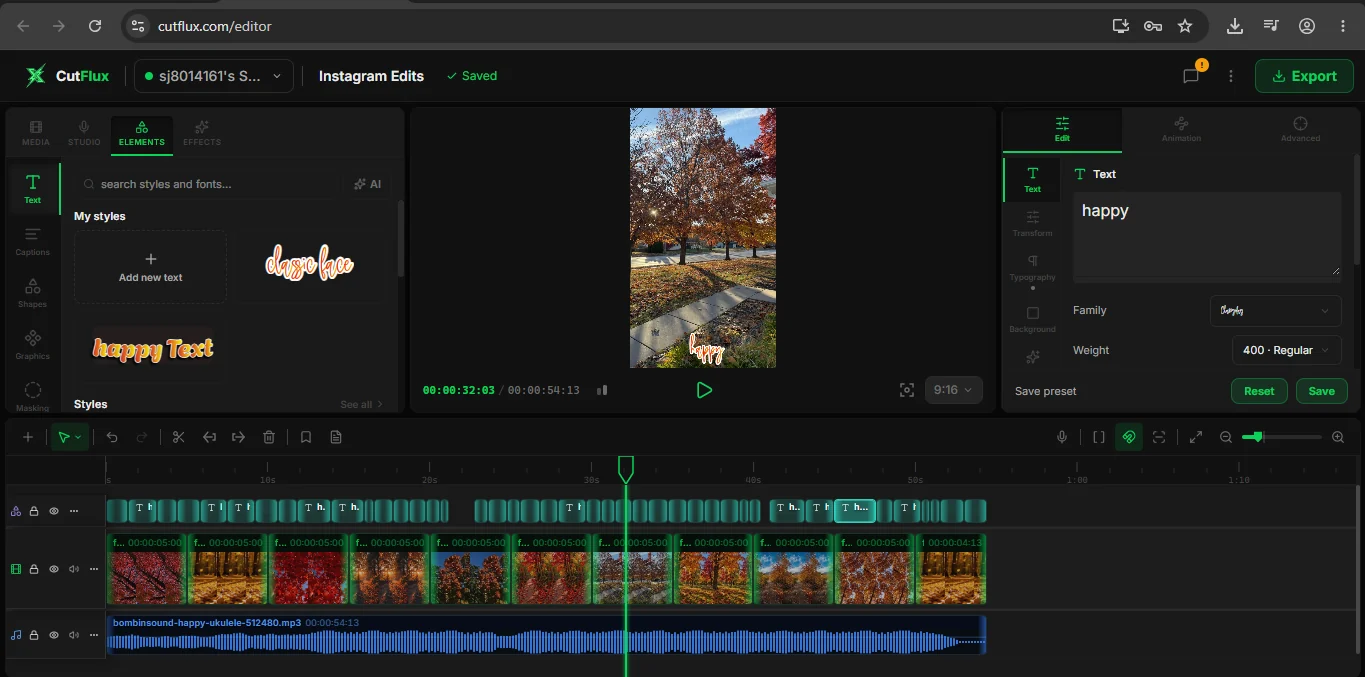
- •Set the frame first. Choose 9:16 in the preview. The project resolution follows at 1080 × 1920, so every photo is composed for the vertical player from the start.
- •Import the photos and order them. Put them on the timeline in the sequence you want. Give each one a duration of 1–2 seconds, and hold longer only when the frame carries a line of text.
- •Animate each photo. Set a start and end scale or position so the image slowly pushes in, pulls out, or drifts. Keep the movement subtle; the goal is life, not a zoom effect.
- •Add the music, then find the beat. Drop the track on the timeline and run Analyze Beats on it. The markers show you where the beat lands, so you can move the photo changes onto them instead of guessing.
- •Add the text and captions. Keep the hook on the first frame, the explanation in the middle, and the call to action at the end. Check every line against the safe area.
- •Use one transition. A crossfade is the least distracting; a wipe is a deliberate accent. Using both in the same Reel makes the cuts feel random.
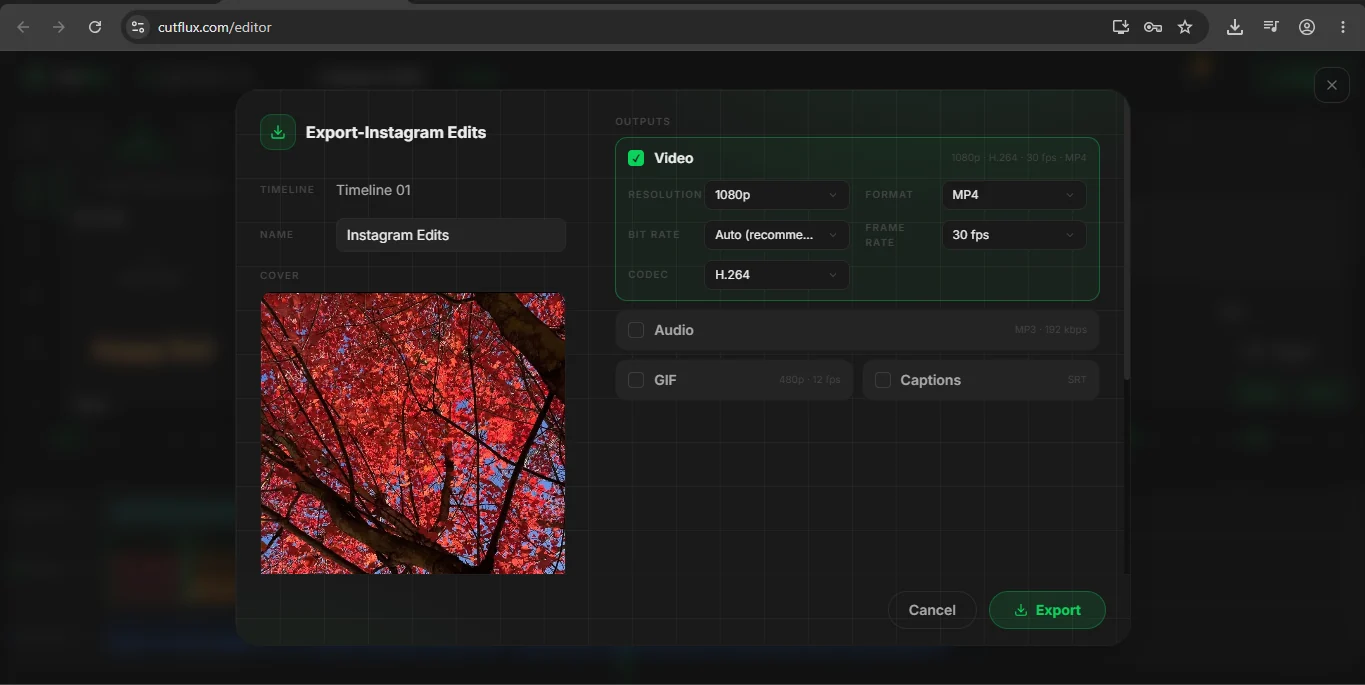
- •Export at 1080p, H.264, 30 fps. Auto bitrate is the right default. The file is already the final shape, so Instagram is not cropping or resizing it on the way in.
Once the project works, save it as your format. Swap the photos, keep the timing, text placement, and music structure, and the next Reel takes minutes instead of an afternoon. If you want a faster pass without keyframes, the slideshow maker takes up to 50 photos with per-image durations, transitions, music, and text.
Three structures that work
Before and after. Two photos, held longer than the rest. Open on the "before" for two seconds, cut hard to the "after", then hold. The whole Reel can be six seconds and still land.
The list. Five to seven photos, one point each, with a number or a short line on every frame. The hook is the promise of the list; the payoff is the last item. Keep the text in the same position on every frame so the viewer's eye does not have to hunt.
The process. Eight to twelve photos in chronological order: raw material, work, detail, result. This is the structure that benefits most from beat-synced cuts, because the sequence is already a story and the music supplies the pace.
The mistakes that make it feel cheap
- •Holding each photo too long. If you can read the frame twice, it is already too long.
- •No motion at all. Stills in a vertical feed look like a carousel that forgot to be a carousel.
- •Too many photos. Twenty frames at half a second each is not energy; it is noise.
- •Text near the edges. The interface will cover it, and the viewer will not rewind to read it.
- •Mixing crops. One landscape photo in a set of portraits breaks the rhythm even if the photo is good.
- •A music track that fights the text. If the track has vocals and the Reel has sentences, lower the music or choose an instrumental.
FAQ
Can you make a Reel with photos on Instagram? Yes. Open the Reels camera, choose photos from the gallery, then add music, text, and a cover before posting. Instagram turns the sequence into a video Reel.
How many photos should a photo Reel have? Six to twelve is the practical range for most topics. Fewer if each frame carries text; more only if the sequence is genuinely a process with distinct steps.
How long should each photo stay on screen? One to two seconds for most frames. Two to three seconds when the frame contains a sentence the viewer has to read. If in doubt, cut it shorter and watch it back.
Can you add music to a photo Reel? Yes. Instagram's library is the simplest option because the tracks are cleared for use in the app. If you use a track from elsewhere, make sure you have the rights to it.
Do photo Reels perform worse than video Reels? They compete in the same feed, so the same rule applies: the opening has to earn the next second. A moving, well-timed photo Reel holds attention as well as a simple video. A static slideshow does not.
Can you edit a photo Reel after posting? You can change the caption, cover, location, and tags. You cannot re-cut the photos or change the timing. The full list is in how to edit a Reel after posting.
What size should the photos be? 1080 × 1920 for a full-frame 9:16 Reel. Larger photos are fine as long as you crop rather than stretch. The export should be 1080 on the short edge.
The one-line rule
Pick fewer photos, move every frame, and cut on the beat — the difference between a Reel and a slideshow is rhythm, not photo count.